

Learning how to live stream cooking classes from your website is the single most effective way for culinary instructors to build a sustainable online school. Instead of depending on Zoom or YouTube, you broadcast live directly on your own branded domain — students enroll, pay, and learn all in one place without being pulled onto another platform. Whether you teach bread baking, pasta techniques, or professional knife skills, knowing how to live stream cooking classes from your website opens your school to a global student base. Furthermore, embedding a live player on your website transforms each class into a repeatable digital product that grows your school beyond your local kitchen. This complete guide covers platform setup, equipment, and monetization using YoloCast. Additionally, it covers the best equipment for culinary instruction and how to monetize your classes with password-protected access.
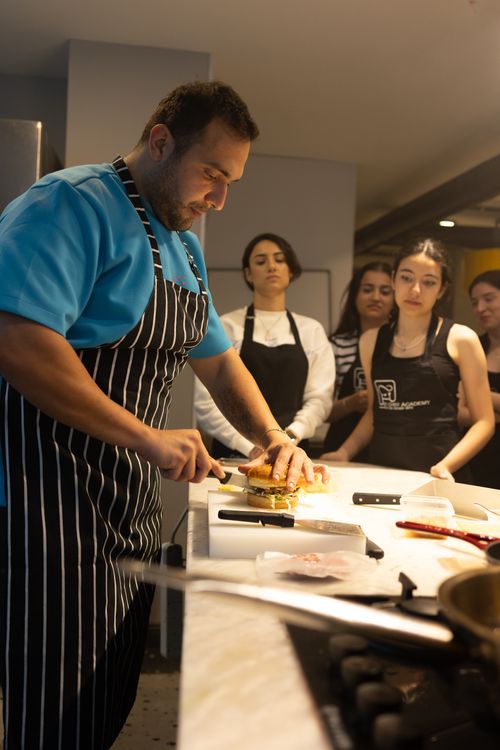
Why Cooking Instructors Are Moving to Live Streamed Website Classes
According to Switcher Studio’s cooking page, culinary instructors who move to live streaming consistently reach larger, more geographically diverse audiences than in-person teaching alone allows. Traditional in-person cooking classes are physically limited. Even a large teaching kitchen holds thirty or forty students at most. However, a live-streamed cooking class has no capacity ceiling. You can teach fifty, five hundred, or five thousand students simultaneously from a single broadcast embedded on your website.
Furthermore, embedding your class player directly on your own website keeps all revenue, data, and student relationships on your terms. Specifically, on Zoom, students connect to Zoom’s platform — not yours. On YouTube, viewers encounter competitor videos and subscription prompts. In contrast, an embedded player on your website creates a focused learning environment where your branding, recipe resources, and enrollment links are always visible.
Additionally, website-embedded cooking classes create a foundation for paid subscriptions and on-demand libraries. All of this stays hosted on your domain, generating data you actually own.
Equipment for Cooking Class Live Streaming
A cooking class live stream requires specific camera positioning that in-person teaching does not. The overhead shot is the defining technical requirement for culinary instruction.
Essential Equipment for Cooking Class Streaming
| Equipment | Minimum | Recommended |
|---|---|---|
| Overview camera | Smartphone on tripod at counter height | PTZ camera with wide-angle lens |
| Overhead camera | Smartphone on flexible arm above cutting board | Ceiling-mounted camera or dedicated overhead arm |
| Microphone | Built-in camera mic | Lapel mic clipped to apron |
| Lighting | Under-cabinet LED strips | Two softbox lights at 45-degree angles |
| Internet | Wi-Fi (15+ Mbps upload) | Wired ethernet connection |
The overhead camera is the single most important element in a cooking class streaming setup. Students need to see exactly what happens on your cutting board and in your mixing bowls. Therefore, invest in a proper overhead mount before upgrading any other piece of equipment.
For audio, a lapel microphone is the best choice. It keeps your voice clear even when you turn away from the camera to check the oven. Consequently, students never miss a critical instruction because you shifted position mid-technique.
How to Set Up Cooking Classes Live Stream Website Embed
Setting up a cooking classes live stream website embed with YoloCast involves five clear steps. Most culinary instructors complete their initial setup in under one hour.
Step 1: Create Your YoloCast Account and Configure Your Stream
Sign up for YoloCast and create a new live stream event in your dashboard. Set your class title, description, and scheduled time. Connect your camera input through your laptop or a dedicated encoder. Then select your streaming destinations — your website’s embedded player, YouTube, Facebook, and any other channels where you want to reach students simultaneously.
Step 2: Configure Your Kitchen for Streaming
Position your overview camera to capture your full workspace from the front at counter height, approximately 90–110 cm from the floor. Mount your overhead camera directly above your primary work surface. Next, test your lighting by running a short preview stream. Cooking under warm incandescent light looks very different on camera than in person, so aim for neutral, consistent lighting that accurately represents ingredient colors. Additionally, clear your background of visual clutter so students focus entirely on your techniques.
Step 3: Generate and Place Your Embed Code
In your YoloCast dashboard, navigate to the embed settings for your stream event. Copy the iframe code and paste it directly into your website’s class page. The YoloCast HTML5 embedded player activates automatically when your broadcast begins. Students who visit your class page at the scheduled time see a professional live player — no redirects to YouTube or Zoom required. For detailed embedding instructions, see our guide on live streaming to your own website.
Step 4: Test Your Full Setup Before Class Day
Run a complete test broadcast at least 48 hours before your first class. Check both camera angles and confirm audio clarity. Then test your internet connection stability and verify the embed player displays correctly on both desktop and mobile. Specifically, test on mobile — many students watch cooking classes on tablets or phones while standing at their own kitchen counters.
Step 5: Go Live and Engage Your Students
Start your broadcast 5–10 minutes before class time so students can settle in. Open with a clear ingredient list and technique overview. Then proceed through the recipe step by step. Monitor live chat between cooking steps to answer student questions in real time. Conclude with a Q&A segment where students share how their dish turned out and ask follow-up questions.
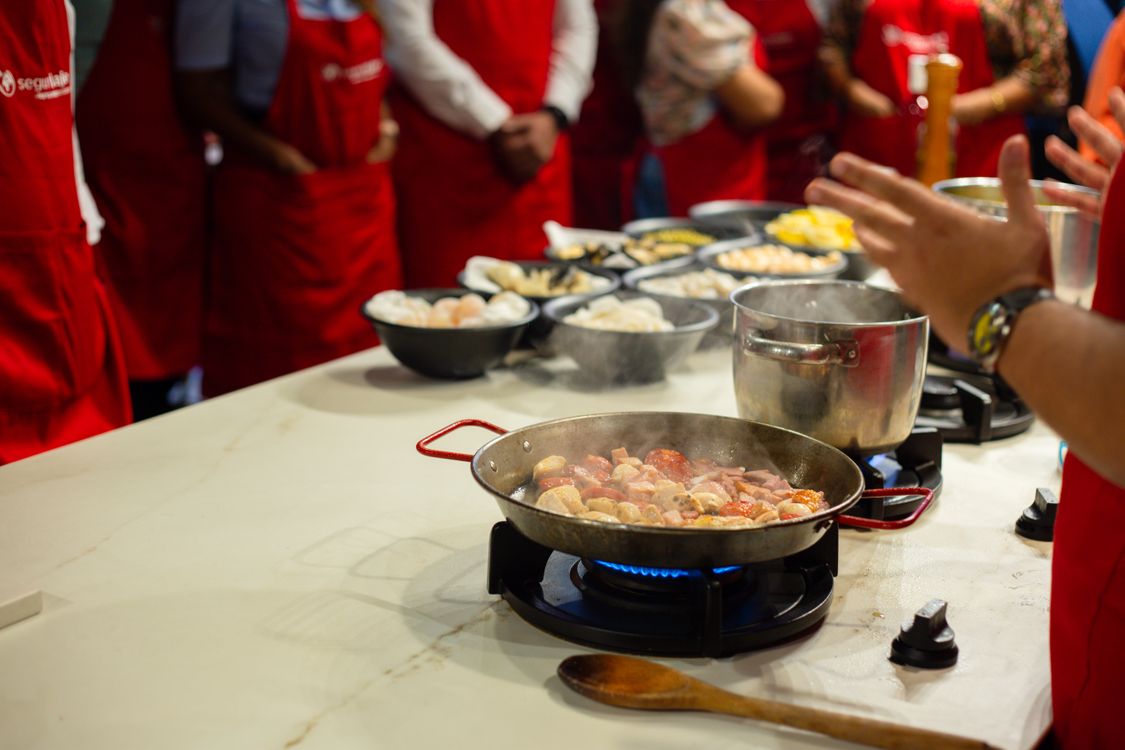
Password-Protecting Your Paid Cooking Classes
If you charge for cooking classes, you want only enrolled students to access the live stream. YoloCast includes password protection on all plans, including the entry-level $19/month tier. You set a unique password for each class session in your YoloCast dashboard. Then include it in the enrollment confirmation email you send to registered students.
Students visit your class page, enter the password, and the embedded player unlocks immediately. Anyone visiting your page without the password sees a locked player. Therefore, your paid cooking content remains exclusive to paying students — without requiring any third-party paywall system.
For cooking schools offering free classes, a tip or donation option adds income without barriers. YoloCast’s Professional plan includes a built-in donation button directly inside the embedded player. Consequently, students support your work without ever leaving your website.
Streaming Cooking Classes to Multiple Platforms Simultaneously
Many cooking instructors want to maintain a presence on YouTube or Facebook while hosting the primary class experience on their own website. YoloCast supports both goals simultaneously through multistreaming. You broadcast once. YoloCast then delivers the stream to your website’s embedded player, YouTube, Facebook, and up to 30 other destinations simultaneously.
Your paying students watch on your website where all class resources live. Meanwhile, casual followers on social media see the class and convert into enrolled students on your platform over time. According to Cozymeal, the leading online cooking class marketplace, demand for live virtual cooking instruction has grown significantly year over year. For broader strategies on scaling a live stream presence across multiple channels, read our B2B live streaming guide.
Using Pre-Recorded Demos as Simulated Live Cooking Classes
Not every class session needs to be genuinely live. Some techniques — complex pastry work, multi-step fermentation, or advanced knife skills — benefit from advance recording and editing before broadcast.
YoloCast’s Upload & Stream feature lets you pre-record a cooking demonstration and upload it to your Media Center. Then you schedule it to broadcast as a live event at your class time. Students experience it as a live class — with live chat running alongside the stream — while you deliver a perfectly edited, technically flawless demonstration. Additionally, you can set recurring broadcasts so the same class replays for new student cohorts each month automatically. You can learn more about this approach in our guide on how to broadcast pre-recorded video as live on your website.
Comparing Live Streaming Platforms for Cooking Instructors
Here is how the most relevant platforms compare for culinary instructors who want to embed live classes directly on their own website:
| Platform | Website Embed | Password Protection | Multistreaming | Simulated Live | Starting Price |
|---|---|---|---|---|---|
| YoloCast | ✓ | ✓ | ✓ | ✓ | $19/mo |
| Dacast | ✓ | ✓ | ✓ | Limited | ~$39/mo |
| BoxCast | ✓ | ✓ | ✓ | ✓ | ~$99/mo+ |
| Zoom | ✗ | ✓ | ✗ | ✗ | ~$15/mo |
| YouTube Live | Partial | ✗ | ✗ | Limited | Free |
YoloCast is the only platform in this comparison that combines website embedding, password protection, multistreaming, and simulated live broadcasting at an accessible price. In contrast, Zoom lacks both website embed and multistreaming, making it unsuitable for instructors building a branded online school. YouTube Live is free but requires students to leave your website, and password protection is not available for live streams on YouTube.
Tips for Better Cooking Class Live Stream Quality
These practical adjustments make a meaningful difference in stream quality and student retention during live cooking classes:
- Use a dedicated overhead arm or mount. A smartphone balanced above the counter wobbles whenever you touch your work surface. A proper overhead camera mount eliminates this entirely.
- Label ingredients clearly on camera. Students watching remotely cannot see small labels. Use bold text cards or a whiteboard when introducing ingredients at the start of each class.
- Keep your overview camera at counter height. Watching a cooking class from a low angle is uncomfortable for extended periods. Position your overview camera at approximately 90–110 cm from the floor.
- Enable AI captions for accessibility. Many students watch cooking classes with low volume while family members are nearby. YoloCast’s AI live subtitles caption your instruction in real time, keeping every student engaged regardless of their audio environment.
- Archive and share every session replay. YoloCast records all broadcasts automatically. After each class, make the replay available to enrolled students as a reference resource — a benefit students genuinely value and one that reduces repeat questions significantly.
Frequently Asked Questions About Cooking Classes Live Stream Website Embed
Do students need to create an account to watch my embedded cooking class?
No. Students visit your class page, enter the password you shared at enrollment, and watch directly in the embedded player. No account creation on YoloCast’s platform is required — only on your own enrollment or booking system if you use one.
Can I sell access to cooking class replays after the live session ends?
Yes. After your live class ends, YoloCast stores the recording in your Media Center automatically. You embed the replay on a separate password-protected page, allowing students who missed the live session to purchase replay access at a different price point.
How many students can watch my embedded cooking class simultaneously?
YoloCast supports thousands of concurrent viewers. For most cooking classes — even large-scale virtual events — your bandwidth plan comfortably handles your full enrolled audience without interruption or buffering.
Can I stream to both YouTube and my website at the same time?
Yes. YoloCast’s multistreaming delivers your cooking class simultaneously to your website’s embedded player, YouTube, Facebook, and up to 30 other platforms from a single broadcast. Consequently, you maintain your social media reach while keeping your primary class on your own website where conversions and enrollments happen.
What is the best camera angle for streaming cooking classes?
Use two angles. First, a front-facing overview shot at counter height captures your workspace and body language. Second, a directly overhead shot focuses on your cutting board or primary work surface. The overhead angle is essential for cooking instruction — it shows hand techniques that a side-angle camera simply cannot capture clearly.
Start Streaming Your Cooking Classes on Your Own Website
Cooking classes live stream with website embed removes the dependency on third-party platforms that fragment your audience and dilute your brand. Furthermore, YoloCast gives you everything you need to build a complete online cooking school. Embedded players, password protection, multistreaming, and simulated live broadcasting all start at $19/month.
Teach more students. Keep your audience on your website. Grow your culinary school entirely on your own terms.
Start your free 14-day YoloCast trial and embed your first cooking class today →
2,605 total views, 19 views today
Betty,As a Customer Success Specialist at YoloLiv, she is passionate about helping users understand YoloCast’s features and resolve day-to-day usage challenges. In addition to hands-on support, she creates practical articles that share tips, troubleshooting guidance, and best practices to help users get more value from YoloCast.
