
Live streaming is now one of the most effective ways to reach people in real time. YouTube Live offers massive reach, and YoloCast makes the entire workflow easier. With YoloCast, you can schedule, manage, and automate your streams smoothly.
This guide explains why scheduling matters, what you need to prepare, and how to schedule your YouTube Live using two different methods:
- Direct YouTube Integration
- RTMP Stream Key & Server URL Workflow
Both are supported in 2025 and designed to meet different streaming needs.
Why Schedule a YouTube Live?
Scheduling a YouTube Live brings several benefits. First, it builds excitement among your audience. Next, it gives viewers enough time to plan ahead. It also allows you to promote your event across your channels. As a result, you can reach more people and deliver a better viewing experience.
Additionally, scheduling gives you time to rehearse, which leads to a smoother live show.
What You Need Before Scheduling Your YouTube Live
Enable Live Streaming on Your YouTube Channel
Before scheduling, you must enable live streaming. Although the approval process can take 24–48 hours, many channels are activated instantly. Once your channel is approved, you can connect it to YoloCast.
Create a YoloCast Account
You need a YoloCast account to schedule and stream. Both the Exclusive and Business plans support streaming pre-recorded videos to YouTube, which many users prefer. For beginners, the Exclusive plan is a great starting point.
Register for a YoloCast Account:
Simultaneously, you’ll need to sign up for a YoloCast account if you haven’t done so already. YoloCast’s exclusive and business plans support streaming with pre-recorded videos on YouTube, making these options particularly appealing. We recommend subscribing to the exclusive package for starters, offering a comprehensive set of features tailored to enhance your live streaming endeavors on YouTube.
Check out this blog to explore all YoloCast Plans: Your Ultimate Guide to YoloCast Plans
How to Schedule a YouTube Live on YoloCast
You can schedule on YoloCast in two simple ways. Each method fits different workflows, so choose the one that works best for your setup.
Schedule Through YouTube Direct Integration
Step 1: Connect YouTube in YoloCast
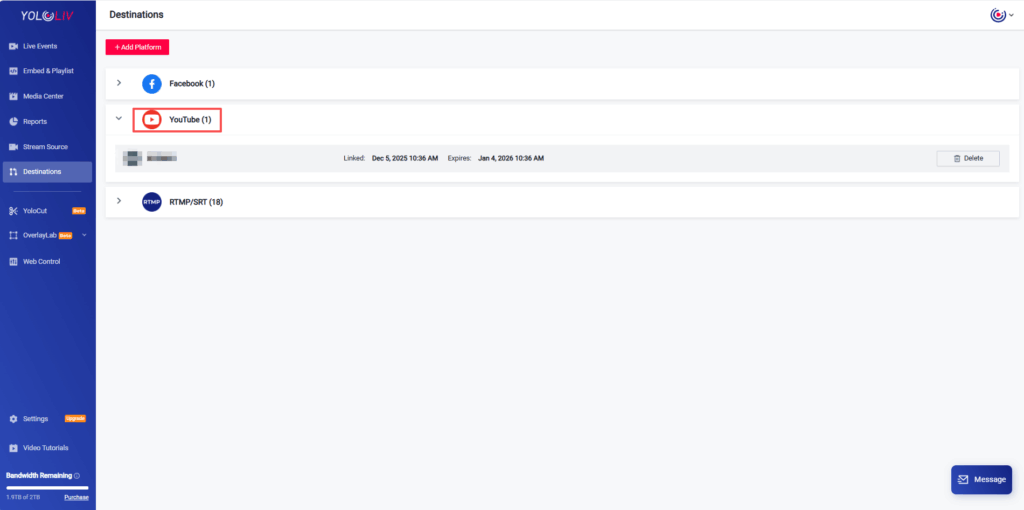
First, log in to YoloCast and go to Destination. Then add YouTube as your streaming platform.
During the process, make sure to allow all required permissions. Otherwise, YoloCast may not connect properly.
Step 2: Create a Live Event
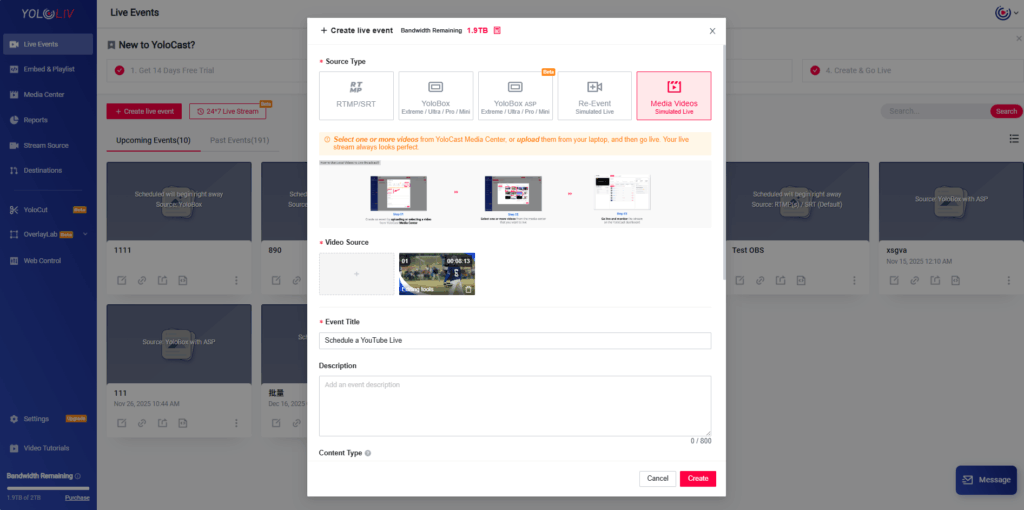
After connecting YouTube, create a new event. Enter your event title, description, and thumbnail. These details sync directly to YouTube.
You may also use a pre-recorded video as your source if you’re on the Exclusive or Business plan.
Step 3: Choose Your Privacy Setting
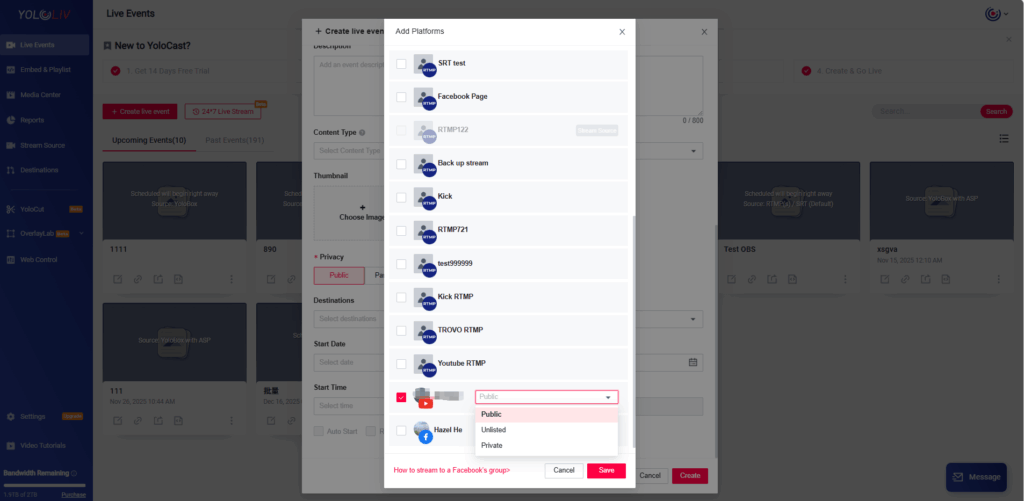
YoloCast offers:
- Private
- Unlisted
- Public
To reach the highest number of viewers, choose Public. This makes your stream visible on your channel and searchable.
Step 4: Set Your Event Time
Select your event time and confirm. You’ll see your stream under Upcoming Events in YoloCast.
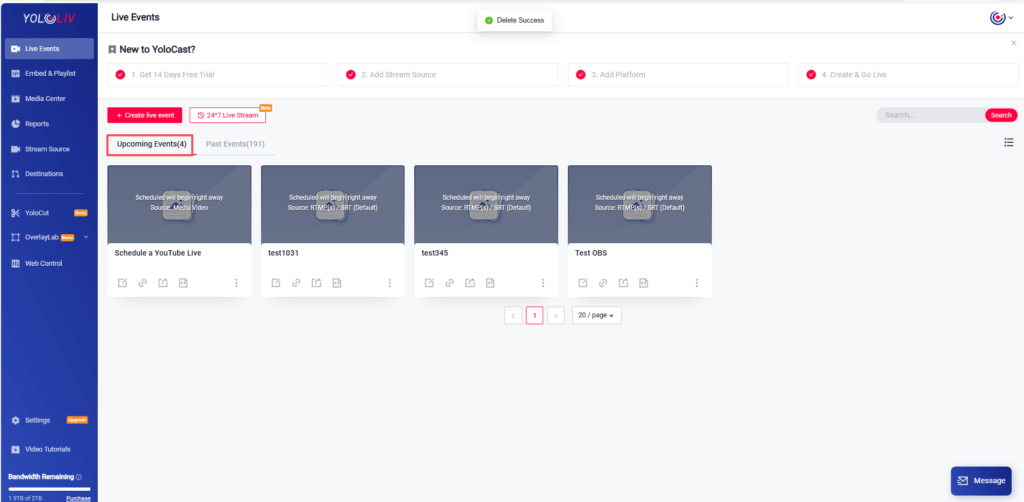
Step 5: Schedule It to YouTube
Open the event and go to Destination. Then click Schedule. Your live event is now officially scheduled on YouTube.
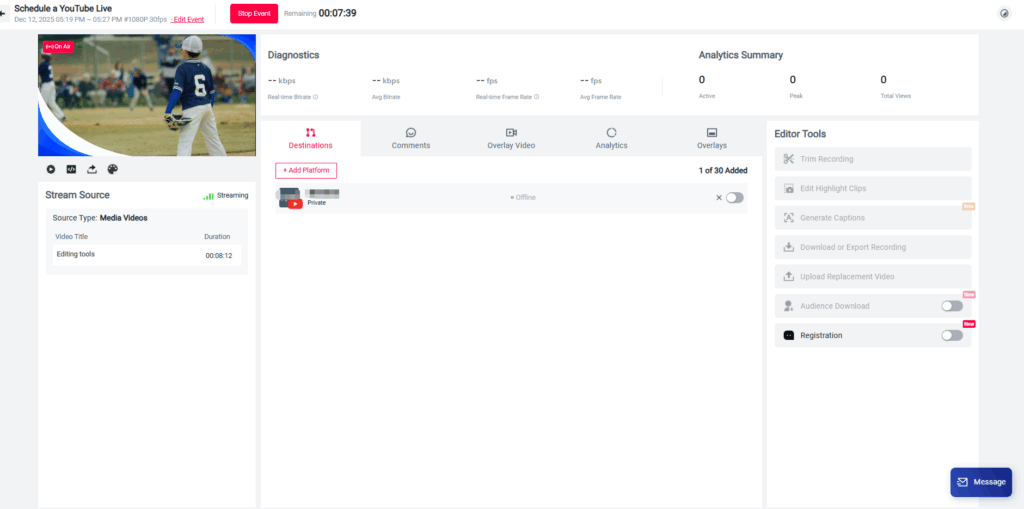
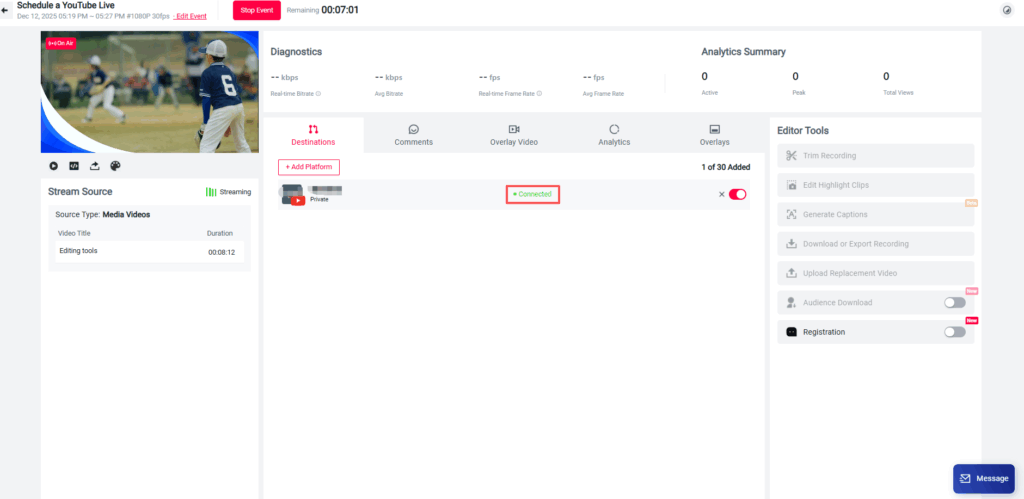
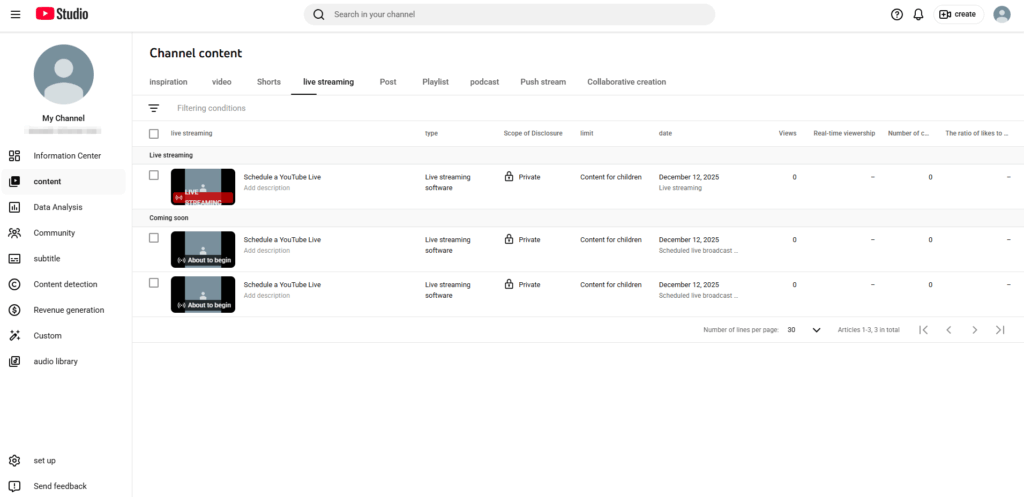
Schedule Using YouTube’s RTMP Stream Key
This method is ideal for users who prefer to set up the event inside YouTube Studio first. It also works well when you need a reusable key or custom control.
Step 1: Create a Stream in YouTube Studio
Go to YouTube Studio and click Create → Go Live.
Then scroll to the Stream Settings panel. Copy your:
- RTMP Server URL
- Stream Key
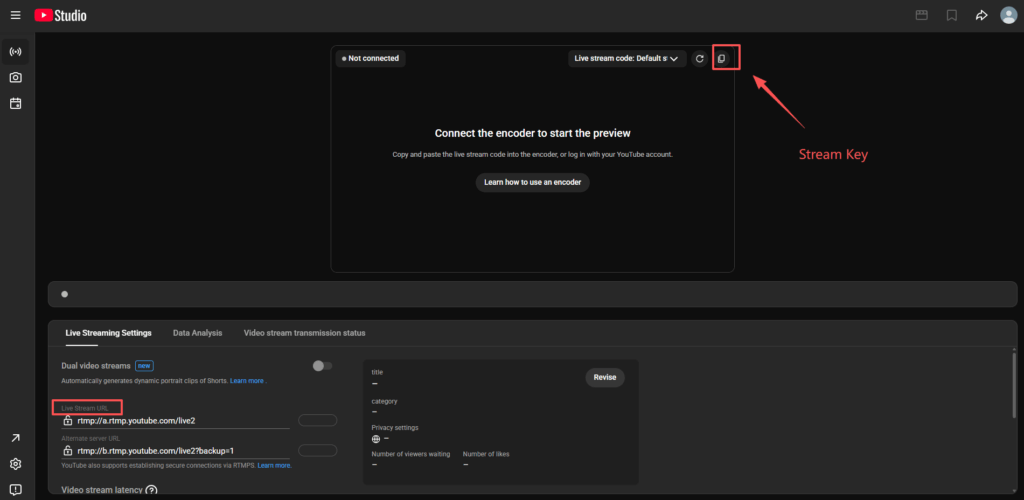
You will paste them in YoloCast shortly.
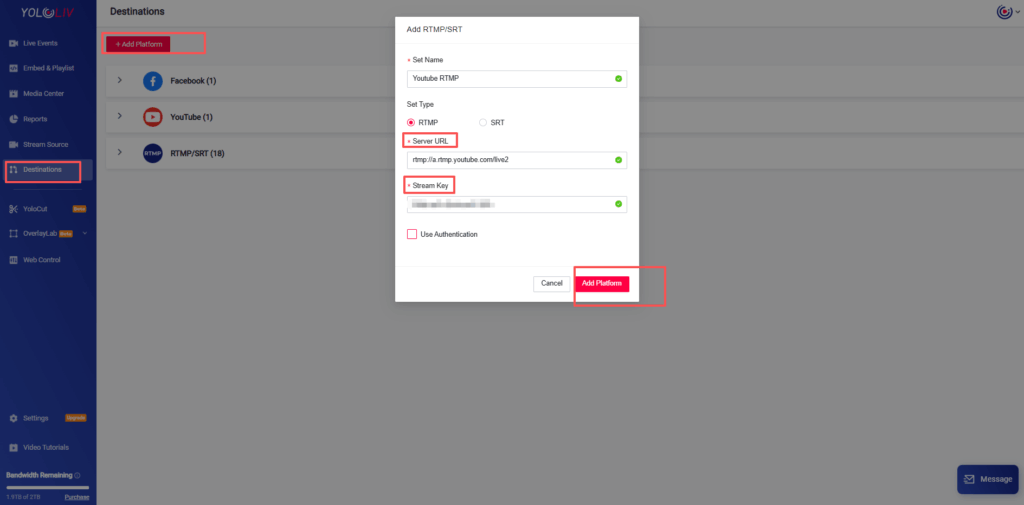
Step 2: Add RTMP in YoloCast
Next, go to Destination inside YoloCast. Add a new RTMP Destination and paste the RTMP URL and Stream Key from YouTube. Save your settings to complete the link.
Step 3: Create Your Event in YoloCast
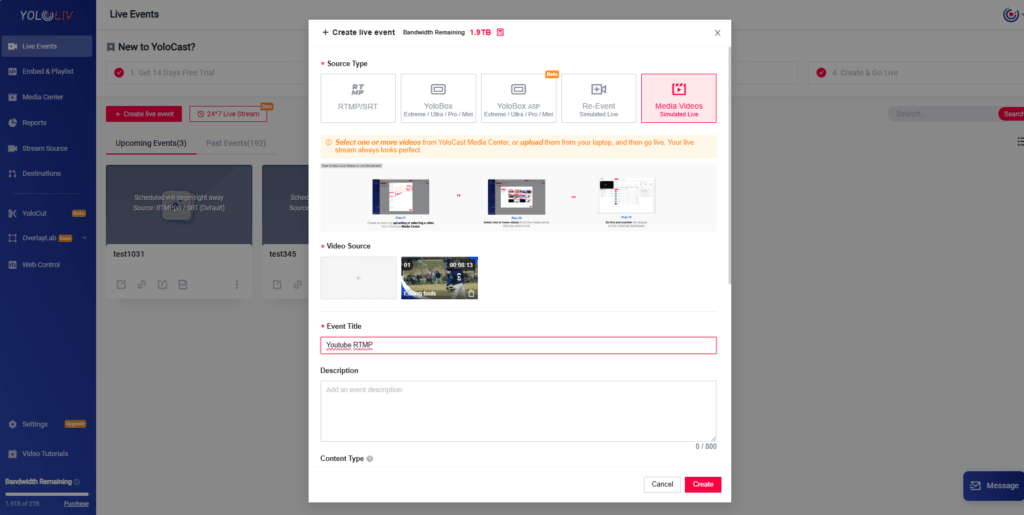
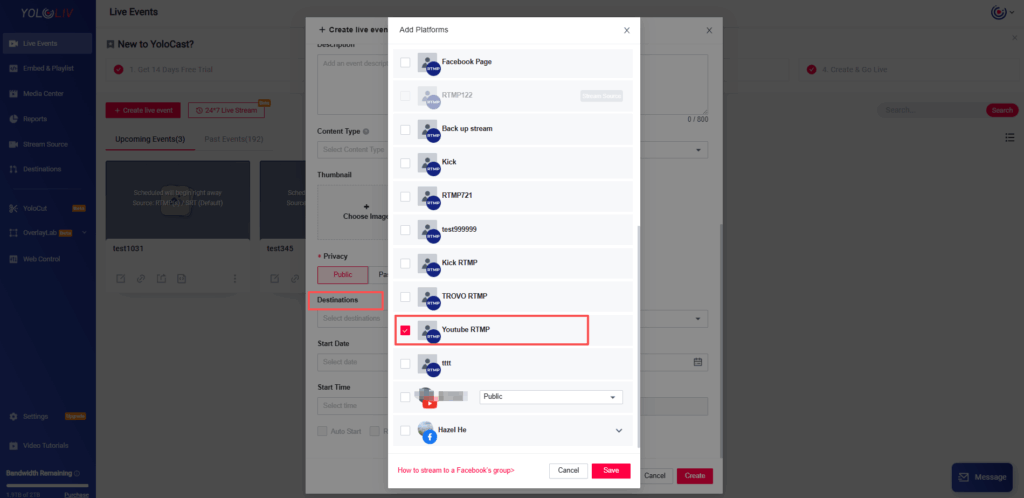
Create a new event just like before. Add your RTMP destination, choose your video source, and set your event time.
Step 4: Start the Stream
When your scheduled time arrives, go live in YoloCast. YouTube will instantly receive the RTMP feed, and your audience will see your broadcast at the scheduled time.
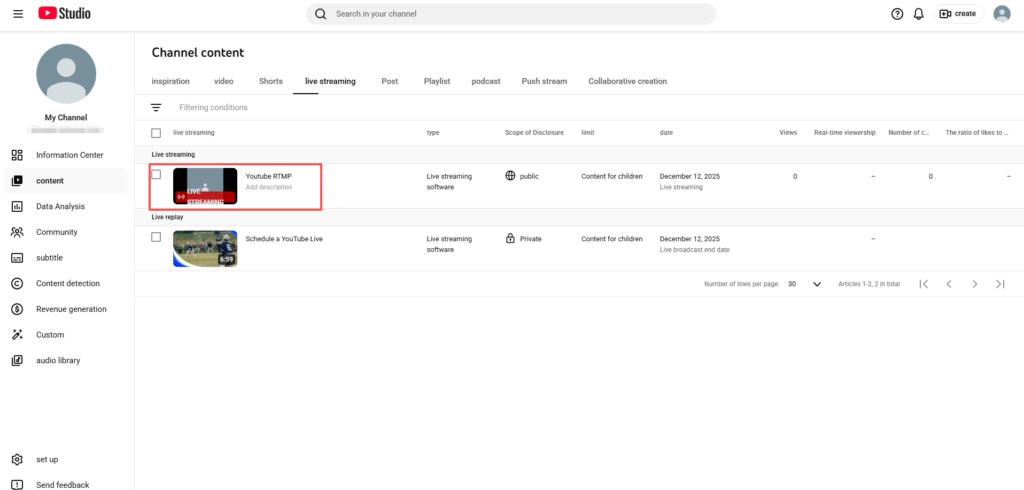
Direct Integration vs. RTMP: Which Should You Choose?
Both workflows work well, but each has key strengths.
Choose Direct Integration if you want:
- Faster setup
- Auto-sync thumbnails and titles
- Simple one-click scheduling
Choose RTMP if you need:
- A reusable stream key
- Custom YouTube Studio controls
- A fallback method if permissions fail
Conclusion
Scheduling your YouTube Live through YoloCast is simple and powerful. With clear settings, automatic sync, and flexible streaming options, YoloCast helps you plan ahead and deliver a polished live show. Whether you choose direct integration or RTMP, your workflow becomes easier, more reliable, and far more efficient.
8,278 total views, 39 views today

Betty,As a Customer Success Specialist at YoloLiv, she is passionate about helping users understand YoloCast’s features and resolve day-to-day usage challenges. In addition to hands-on support, she creates practical articles that share tips, troubleshooting guidance, and best practices to help users get more value from YoloCast.
