
YoloBox
YoloCam
YoloCast
Solutions
Resources
FAQs


YoloCast PPV Guide
Connect payments, set up paid viewing, share your event, review results and manage orders.
Draft 0.3 | 22 October 2026 This guide is still being revised. Steps marked Pending verification and blank screenshots will be updated before the final version.
Preparation and the limited beta offer
Host a paid event with YoloCast. A purchase includes live viewing and replay within the access period you set.
Choose your streaming setup
Stream with YoloBox, YoloStudio, OBS, or another RTMP-compatible app or hardware encoder. The dashboard also offers YoloBox ASP, Re-Event and Media Videos; the latter two use prerecorded content. This guide follows the RTMP live-event workflow.
Pending verification: the full PPV workflow for other sources and prerecorded content.
When the beta offer applies
The offer below applies to accounts enabled for the beta by our team. All participating accounts share the same offer period.
| Time zone | Starts | Ends |
|---|---|---|
| US Eastern (EST) | 10 Nov 2026, 10:00 | 10 Feb 2027, 10:00 |
| US Pacific (PST) | 10 Nov 2026, 07:00 | 10 Feb 2027, 07:00 |
| UK (GMT) | 10 Nov 2026, 15:00 | 10 Feb 2027, 15:00 |
| Beijing | 10 Nov 2026, 23:00 | 10 Feb 2027, 23:00 |
During the beta, there is no subscription fee or limit on PPV events, and CDN/bandwidth charges for live broadcasts and replays are waived. Usage may still be tracked against an allocated allowance. Contact our team if you see an allowance warning. Post-beta subscription and CDN/bandwidth pricing will be announced separately. Extensions are arranged individually.
The platform fee is 15% of the ticket amount paid, before Stripe fees. You cover Stripe fees separately. For a US$100 payment, the platform fee is US$15, with Stripe fees deducted in addition.
Not in the beta yet and interested in joining to receive the beta offer? Contact doudousun@yololiv.com. Benefits require confirmation and activation by our team. Other accounts remain subject to their existing plans and applicable terms.
Account and Stripe connection
1 Sign in to your existing YoloCast account
Sign in to your existing YoloCast dashboard account. If invited to the beta, your invited email is your existing dashboard account email; no separate beta account is needed. Our team enables benefits for participating accounts, which may use the Business plan. Reading this guide does not automatically activate the offer.
If joining the beta with an existing paid subscription, contact our team to arrange auto-renewal and the transition. All remaining days on your original plan are preserved, recorded and handled manually for restoration after the beta. Canceling auto-renewal does not immediately end your purchased access.
2 Connect Stripe
Open Paywall. If not connected, select Connect to Stripe, follow the prompts and return to YoloCast. A connected account shows Stripe connected in the upper-right corner. You can prepare your Stripe account before further dashboard updates.
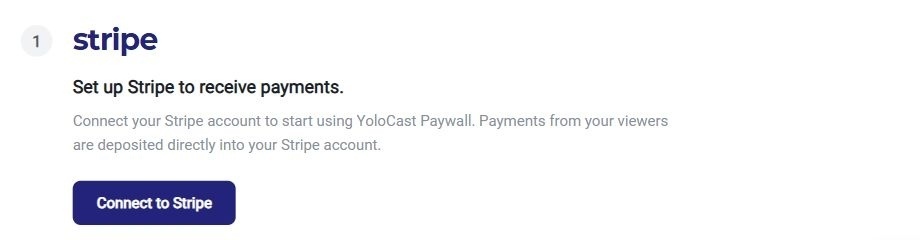

Connection entry and connected status are visible. The full authorization flow and payment readiness are pending verification.
3 Stripe registration and support
Contact Stripe for registration, identity checks and account reviews. For YoloCast connections, Paywall setup or dashboard help, contact doudousun@yololiv.com.
Create an event and connect a source
1 Enter event details
Open Live Events > Create live event. Choose a Source Type, enter the Event Title, description and required details. Check Start Date / Start Time against your account time zone.
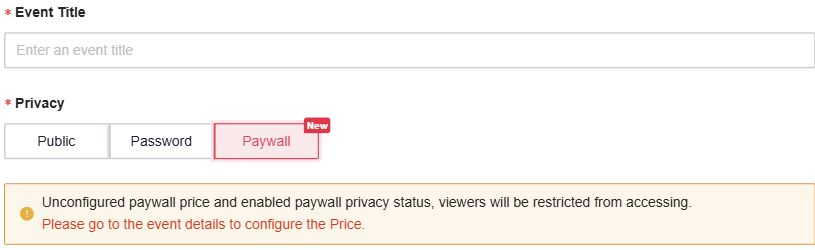
For a paid event, choose Paywall, then complete pricing in the next chapter. Selecting Paywall without configuring a price restricts viewer access.
The form is visible. Saving and publishing behavior are pending verification.
2 Connect your streaming source
For RTMP streaming, open Stream Source > RTMP inside the event. Copy the Server URL and Stream Key into your streaming app or encoder.
The stream URL sends your signal to YoloCast; the viewing link is for your audience. Getting stream details, receiving a signal, going live and viewer playback are separate steps. Check the picture and sound after the signal arrives.
Pending verification: signal receipt, preview, Go Live and when viewers can actually watch.
Ticket price and access length
After creating the event, open Paywall > Overview > Add new paywall. Select Live Event under Content Type, then choose the event under Content source.
Check Currency and enter the Price. For time-limited access, choose Limited time under Access length, set the Duration and unit, then select Create paywall.
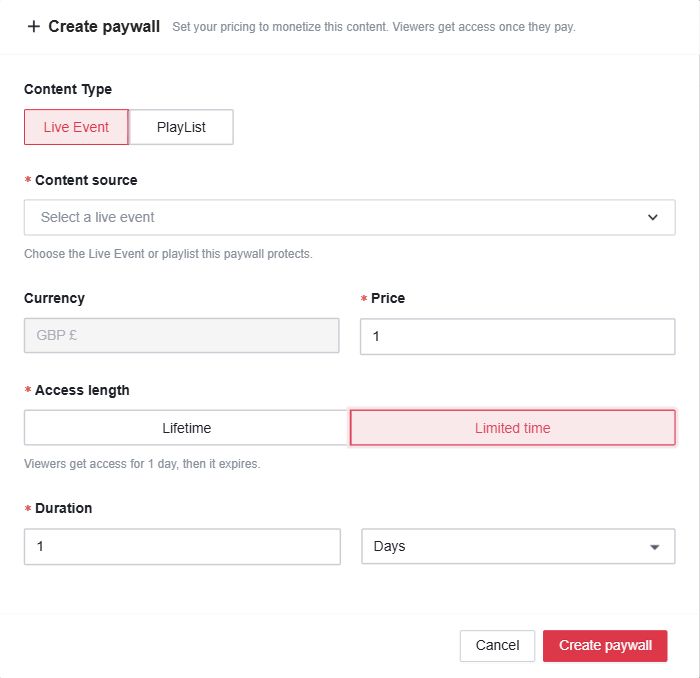
A purchase includes live viewing and replay. Access starts when payment succeeds. Viewers must purchase again after it expires. When selling early, allow enough time from purchase through the live event and intended replay period.
You can change the price and access length at any time. Changes apply only to orders paid after the change. Previously paid orders retain their original price and access terms.
Pending confirmation: the agreed range is US$1-1,000 equivalent, but this GBP form shows a £1 minimum. Currency depends on Stripe configuration. Saving, content association, payment-based timing and retention of terms for previously paid orders are pending verification.
Paid viewing and free previews
1 Check paid access for the event
In the event's Privacy&Paywall section, confirm Paywall and the associated price and access terms. You can also choose Paywall when creating an event, then configure its price.
2 Set device limits and free previews
Open the relevant Paywall Detail > Access tab. Use Concurrent Viewing to set the simultaneous device limit; the agreed range is 1-5 devices, not people or orders. Enable Free Preview if needed and check the duration settings shown on screen.

Viewers can preview without registering or signing in. Purchases require an email-based account and sign-in. Preview time is tracked per device and starts afresh on a different device. Enabling preview, opening it and successful playback are separate results.
Pending verification: duration fields, save controls, preview playback and timing, and device enforcement. This example does not establish rules for pausing, background playback or refreshing.
3 Check live playback and replay
After going live, check the picture and sound from the viewer side. Check replay access after the event. Recording, saving and replay-release steps are pending verification.
Manage whitelisted viewers
Use the whitelist to grant selected viewers free access by email. This can be useful for invited viewers or to arrange access after checking that a buyer's original access period was set incorrectly.
1 Open the whitelist for the relevant paywall
Open Paywall, select the relevant paywall, then go to Access > Whitelisted Viewers and select Add Viewer.

2 Add a viewer and check access
Use the email the viewer actually registered or purchased with, and complete the fields shown in the add-viewer window. Ask the viewer to sign in with that email and check access to the intended content.
Pending verification: form fields, save control, duration settings and access taking effect. The screenshot confirms the entry and list only; it does not establish permanent access or automatic changes or refunds to the original order. Access after removal also remains unverified.
Publish and share your event
Before publishing, check the event time, price, currency, access length and preview. Published events with Paywall configured can accept purchases; publishing controls, the publishing flow and purchase availability remain pending verification.
1 Share a paywall or event link
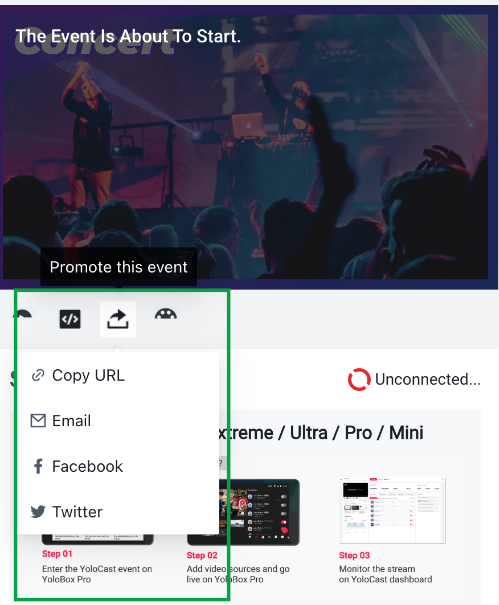
In Paywall Detail > Setup > Share your paywall, use Copy Link for the direct link, or share via Email, Facebook or Twitter.
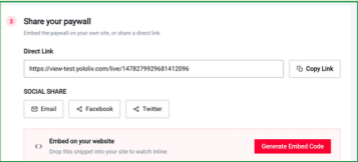
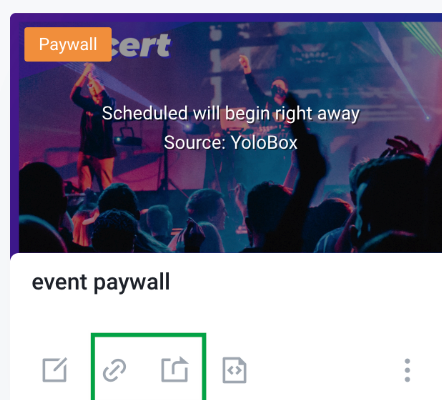
The event list card also has copy-link and share icons. In event details, Promote this event offers Copy URL and social sharing.
To embed on a website, use Generate Embed Code, or choose JavaScript / Inline Frame under the event's Website Embed. Website Embed is the embed-configuration entry.
2 Viewer purchase and playback
Viewers open the link, register or sign in with an email account, then pay. The purchase email should include payment details and the event link. Returning viewers must use their purchase account within its access period. Sign-in, payment, email delivery and viewing access each require confirmation.
Viewer purchase screenshots remain pending. Direct-link and embedded checkout both need verification. There is no standalone test-purchase mode; production payments create real transactions and fees.
Improve your PPV events with analytics
Use Analytics and Paywall to review viewing, conversion and sales, then refine your content, ticket settings and purchase experience.
1 Review viewing performance
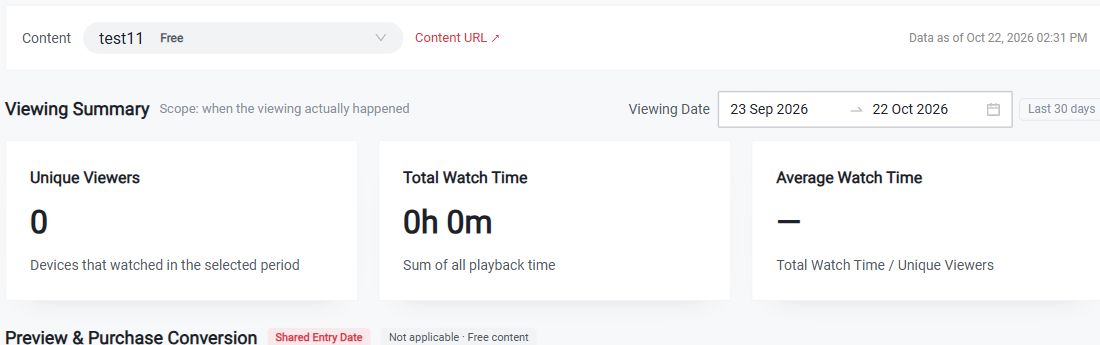
Open Analytics > Viewing, select an event and Viewing Date, then review Unique Viewers, Total Watch Time and Average Watch Time. Viewer counts here are device-based.
| What to review | How it can help |
|---|---|
| Viewing devices and watch time | Assess scale and engagement. Review pacing and playback experience to improve the opening, event length and replay content. |
| Preview and purchase conversion | Find drop-off between entry, preview and purchase. Refine descriptions, preview length, price and buying instructions. PPV sections remain pending verification. |
| Revenue fees and refunds | Combine Paywall totals with orders to review revenue, deductions, net earnings and refunds, then assess pricing and event returns. |
2 Distinguish sales analysis from order management
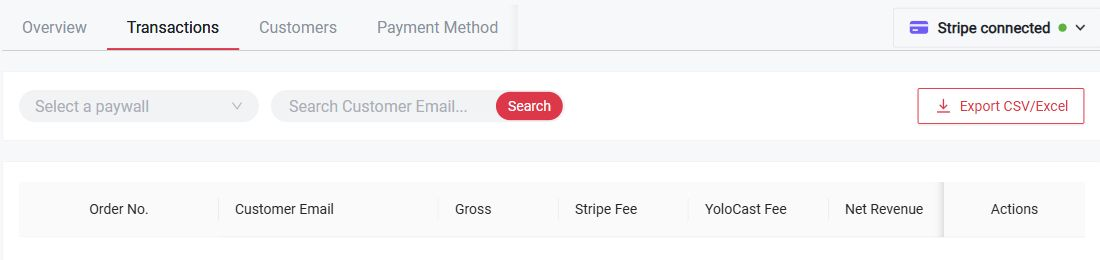
Analytics > Transactions is the new sales-analysis entry. Paywall > Transactions is for viewer orders, fees and refunds, with Export CSV/Excel for further review.
Viewing uses playback dates. Preview and purchase conversion use entry dates and the following 24 hours. Payment-date reporting, PPV details and export contents are pending verification. Match the event, dates and currency when comparing; devices are not orders. This account has no paid content, so empty data does not establish absence of a feature or successful verification.
Manage orders and refunds
1 Find a viewer order
Open Paywall > Transactions. Select a paywall or search the buyer's email to review orders, fees, net revenue and refunds. Account subscription billing is separate from viewer orders.
2 Handle refunds
Refunds can be initiated in YoloCast or Stripe, with status synchronized. A full refund returns the buyer's entire ticket payment and YoloCast refunds its platform fee. Partial refunds do not return the platform fee. Original Stripe payment fees are not refunded. Returning only your net proceeds is not a full ticket refund. If canceling an event, notify buyers and manually issue full refunds.
Pending verification: order details, refund controls, two-way synchronization and viewing access after refunds. Whether partial refunds revoke all viewing access is unconfirmed. Refund screenshots remain blank; a successful order does not mean funds have reached a bank account.
Get help
For YoloCast help, contact doudousun@yololiv.com. Regular support hours for beta participants are below. Business days follow the Beijing calendar.
| US Eastern (EST) | US Pacific (PST) | UK (GMT) | Beijing |
|---|---|---|---|
| Previous day 21:00 to current day 06:00 | Previous day 18:00 to current day 03:00 | Current day 02:00-11:00 | Current day 10:00-19:00 |
Other times can be arranged in advance around your event. Include your account email, event link, issue time and time zone, and a screenshot; add the order number for payment issues. Viewers should contact you first. Contact Stripe for registration and account reviews.
- YoloBox
- YoloBox Pro
- YoloBox Mini
- YoloBox Ultra
- YoloBox Extreme
- Instream
- VertiCam
- YoloCast
- YoloMax
- Overlay Lab
Products
- Live Selling
- Sports
- Weddings
- Church
- Videographer
- Education
Solutions
- Blog
- Customer Stories
- Marketing Kit
- Version History
- What's New (YoloCast)
- EU Shipping Documents
Resources
- About Us
- Careers
- Events & Shows
- Contact Us
Company
- YoloBox
- YoloBox Pro
- YoloBox Mini
- YoloBox Ultra
- YoloBox Extreme
- Instream
- VertiCam
- YoloCast
- YoloMax
- Overlay Lab
Products
- Live Selling
- Sports
- Weddings
- Church
- Videographer
- Education
Solutions
- Blog
- Customer Stories
- Marketing Kit
- Version History
- What's New (YoloCast)
- EU Shipping Documents
Resources
- About Us
- Careers
- Events & Shows
- Contact Us